Note: Please support website owners by subscribing to them, donating to their Patreons, etc, whenever you can. Don’t abuse this capability. Note the date of this post – July 1, 2020. This method might not work when you try this, but it (generally) works now.
A lot of websites talk about methods to circumvent website paywalls. It used to be that you could go into Private Mode (what Chrome calls Incognito mode) to circumvent a “number of articles read” counter, which used a cookie saved on your computer to track how much you’d viewed their site. As of 2020, many of the largest websites now block Private/Incognito mode browsers from viewing their content.
A newer method that some sites mention now is disabling Javascript. For a website which has a fancy “fade out the screen” animation covering the text you want to read, it’s almost certainly Javascript creating that animation. The webpage content is still loaded on that page, just behind the Javascript overlay.
All browsers have had the ability to disable Javascript entirely for decades. This is an easy thing to search for. But Javascript is useful, and you might want it turned on for most sites you visit, and only disable it on a site-by-site basis. Chromium-based browsers (like of course the famous Chrome, Opera, Brave, and the new Microsoft Edge (edgium) browser) have the ability to easily control Javascript’s activation per-site. For this demo, I’ll be using the Windows operating system, Brave Browser and WashingtonPost.com, and I’ve just selected a random non-Coronavirus article (because the Post gives away access to coronavirus-related stories for free. Please support quality journalism so they can keep doing this).
If you already use Chrome, you might consider checking out Brave. Brave is basically a super-charged version of Chrome that works the same way, except with better privacy protection (source). I still use Mozilla Firefox as my main browser, but Brave has replaced Chrome as my method of accessing Google-owned properties like Gmail, Youtube, Maps, etc. Heck, even Mozilla agrees that Brave is on their level when it comes to privacy (if not utility – which I agree with too – nothing beats Firefox for customization if you’re into that).
Remember though, you don’t need Brave. You just need a Chromium-based browser (here’s a list). If you’re like most people, you probably already have one: Google Chrome.
In my previous entry, I touched a bit on the ability of QR codes on shared bikes, as a convenient and very cheap way to get around major cities. Shanghai has 24 million people in it, but we also visited the nearby Hangzhou, which “only” has 7 million people in its urban core. We saw bike share prices ranging from 10 yuen cents per hours, to one yuen per hour. As of this writing, a yuen is worth about 15 cents… so yeah, pretty cheap.
The bullet train to Hangzhou was cheap too, 88 yuen one-way. Clean and spacious, with somber-faced apron-wearing attendants quietly mopping the floor of footprints after each stop. On initial startup, the train would glide forward slowly, with none of the creaking and clanking noise of wheels grinding against tracks that we associate with trains. It took quite awhile to get from Shanghai Central Station to the Western station, at a pretty low speed for safety. But once out of the city, we got our first and only chance to glimpse at how rural Chinese people live. Bearing in mind too, that these folks were still only a 20-30 minute drive outside the city so we can’t truly classify them as rural as I know still so many Chinese villages exist hours away from major cities! The houses I saw though, were palatial mansions in comparison to the small apartments that the average Shanghai citizen would be able to afford. Daniel told us that Shanghai is one of the most expensive cities in China, and that housing costs are outpacing food and transportation. I told him it was similar in the USA: more than those two things, space to live in is something you can’t just import or create, so prices are skyrocketing. But these outside-Shanghai houses seem to rejoice in their expansive land options, and building 3 story homes, even though plain and unadorned on the outside (most were of the simple vertical rectangle style) they had plenty of space! Farms and rice paddies seemed to be the norm.
Okay, I got my money’s worth
Within 10 minutes outside the city, the train had increased its speed up to the rated 300 kilometers per hour and the vibrations and noises had increased to what Amtrack customers would probably classify as “normal” – I’ll admit it wasn’t the face-melting experience I might have been hoping for, but it says a lot for the quality of engineering that 300kph felt slow and comfortable, and I wanted to say “what, this is it? This baby feels like it could go so much faster!” However, Hangzhou is only an hour away at 300kph so really, by the time we got up to speed, we only got to keep at that pace for a few minutes before we were already gracefully slowing back down again to reach the first stop on the outskirts of the “small” city.
Looking at China’s technological expertise firsthand during our week in Shanghai is simultaneously awe-inspiring and unnerving. We know that we’re in China’s most expensive city, which arguably pushes tech even further than it might be in other parts of the country, but even with that in mind, I sometimes felt like it will take the USA ages to catch up with things that the Chinese take for granted – or possibly, we’ll never catch up at all. More on that below.
Let’s get the obvious out of the way first – yes, the Great Firewall is large and imposing. An obvious show of strength and control by a totalitarian one-party government. The list of websites they’ve blocked, both western and of course, many more local Chinese ones, is large and growing all the time. Websites rarely, if ever, get taken off the block list once they’re put on it, either. Piss off “the party” once, and you’re blocked for all time. There’s no recourse to turn to and say, “look, I took down the post where I pointed out the failings or vast corporate wealth of party leader such-and-such, can I be allowed back again?”
Google search is gone. Gmail seems, weirdly, to allow mail to be sent (sometimes) but not to be received. Facebook and its sub-companies (instagram and whatsapp) are all wiped out. But hey, you’ve got Skype and the Chinese-hosted version of Bing Search! Christine, who didn’t have a VPN on her phone, has gotten very used to searching with Bing now. It’s just as terrible of a search engine in Chinese as it is in English.
I came equipped with two VPNs on my phone – my work one, and a personal one running off my home router. The former is IPSec Xauth, and the latter is PPTP (yes I know it’s old and insecure! I just needed it to see if it could circumvent the Great Firewall!) – the IPSec one worked almost always and could connect very quickly, the PPTP one worked most of the time (some wifi routers seemed to block it without exception) and could connect a bit slower. So my analysis is that as of January 2019, the GF is not completely blocking all PPTP connections, as some websites have posited. The blocks are, as I expected, for commercial VPN companies that are publishing their VPN addresses online for the Chinese government to scoop up and block, not for the entire PPTP protocol. While it would be trivial for the GF to block all PPTP traffic (it uses well known and easily blockable protocols) the Chinese government is now very pro-capitalist and very pro-money. Corporations might not be using PPTP very much anymore (and they sure the heck shouldn’t be, as it can be decrypted within a day) but the Chinese government doesn’t want to run the risk of scaring away companies and their valuable tax revenue by blocking corporate VPN traffic – they seem to only want to block commercial ones.
Okay, enough arcane tech jargon.
What isn’t blocked by the GF? Wechat. 100% Wechat. I remember 5-10 years ago China also used a chat client called QQ (and my AFS brother Daniel still uses an email address with the wonderfully short qq.com domain name (I love me a short email domain!)) but now in 2019, any other GF-approved companies have been washed away by the dominating flood of Wechat. Every person uses it, and every company uses it.
Christine prepares to have Daniel pay 30 yuen for a “Mr Wish” mystery box (she got a big bottle of shampoo)
QR codes. Relegated to an amusing nerd “wouldn’t it be cool if we used these?” oddity in the USA, China has grabbed the ball and run with them so far that there’s essential no way we could ever catch up. Beyond the usual “chat client” functionality of Wechat that we Americans can understand and use ourselves, the other 75% of wechat is how it uses QR codes. If you give Wechat the ability to access your smartphone camera (and let’s face it, most do) then you can enter its “scanner” mode, and aim it at a QR code. Every billboard for every company, large or small, will stick at least 1-2 QR codes on it that you can scan to “follow” that company’s news postings. This is how Wechat is not only a chat system, but also a twitter-esque social media system with a “newsfeed” of public postings by your friends, official company handles, and internal groups – just like how we use them.
But let’s take restaurants. Sure, they have a wechat handle you can follow. Sure, even a noodle cart will let you pay for your meal by displaying your personal wechat QR code, which is linked to your bank account or credit card, and payment takes less than 5 seconds, your phone vibrates and a notification pops up that “15 yuen has been deducted”. But in four different larger restaurants we went to, even each individual table had its own, personal QR code that you could scan with your phone, immediately be linked to not just a menu, but a full ordering system where you could have any item on the menu, sent directly to your table. Interaction with waiters is essentially null at places like these.
We went to a karaoke house with Daniel, his wife Valerie, and his dad Steven. When most Americans think Karaoke, we think of a Bar format, where there’s usually a DJ, a book of songs he has, and you come up with pieces of paper and give them to him, and he keeps track of what order people give them to him. Then you have to wait your turn, put up with people who aren’t your friends singing terribly, and all that jazz. The Chinese would laugh at us if they saw this. Their karaoke setup is worlds ahead of ours – for $20, our party of 5 got a private room with three microphones, a TV on each wall showing music videos with lyrics overlaid, and a control screen where you can modify the volume of the backing audio, the main vocals track (if you need help singing, for example), and choose the next song out of an internet-connected list of thousands. But of course, you can also aim your phone at a QR code and be automatically connected to the control system for your specific room and do everything from there. Amazing.
Christine works with the control screen instead of using her phone – foreigner problems!
It’s hard to believe HeiseHeise.com has been on the Internet since May 2007 – I know, I have the bills from 1and1.com to prove it! Hard to believe I’ve been going to places like Jordan, China, and India and logging right into the admin page for the website through an HTTP connection – I might as well have been saying to the government-controlled ISP’s I was connecting through “please, take my username and password and store it for your later use!”
I might not have been nearly as technically minded a decade ago as I am now, but for the past half decade or so I’ve been wincing, or connecting to the UW’s VPN service, every time I’d log onto my website. But what else could I do? I only pay 1and1 about $3 a month for the most basic hosting plan I can get; for a long time it’s been essentially impossible to add a TLS certificate (or even the now-outdated SSL) onto shared hosting unless I had my own IP address, and no way in heck was going to pay that kind of money for a website which is basically one step above a public diary.
However, in September 2016 1and1 apparently relented and allowed all their hosting plans access to a free Symantec certificate (using SNI, a relatively new technology that allows shared sites to be able to use certificates), good for one domain (no subdomains). Thanks to this thread for showing me that while 1and1 wasn’t willing to allow 3rd party certificates on their servers (like the well known and amazing LetsEncrypt service), the final post on that page clued me into this new generosity. So yesterday, I pushed two buttons in the 1and1 admin panel to generate the new cert, then went into WordPress’s settings here on this site to change my URL from HTTP to HTTPS. Then….the site went down for the next 3-4 hours or so. Whoops. I mean, I wasn’t alarmed yet – I know it takes awhile for hosted websites to do stuff sometimes. I figured there was some sort of delay in linking the new Symantec certificate into my domain, or changing my shared hosting location from an HTTP section of 1and1 server’s to an HTTPS server (I noticed my IP address changed this morning). Then, it was a few modifications to my .htaccess file to permanently 301 redirect http://heiseheise.com to https://heiseheise.com (so from now on, you shouldn’t need to update your bookmarks; all visits to the unencrypted site will redirect here to the encrypted version) and that was that. My website gets an A rating from SSLlabs.com, and also points out that people visiting me from Internet Explorer on Windows XP won’t be able to see the website at all now (due to a lack of the aforementioned SNI technology). Good! Stop using Windows XP, people. Ugh.
But Zach, why am I still not seeing the green padlock on this site? Firefox shows me a padlock with a yellow exclamation point, and Chrome shows a circle with an “i” in it. Good question. It’s probably a combination of the plugins I use that might not support HTTPS yet, combined with the fact that all my actual blog entries until now are using HTTP for linking to the photos I host. I was hoping the htaccess modification would automatically rewrite the code on the fly but it looks like that’s too much to hope for. Perhaps I’ll go back and change the links in the blog entries to go to https, but considering that when you actually do click on the pictures they take you to the HTTPS version, I’m not overly worried. And besides, the main thing is that the admin pages of WordPress are now 100% secure (check out https://heiseheise.com/blog/wp-admin to see the green padlock we all know and love) so I’m no longer worried about my credentials getting hoovered up by any governments or ISP’s I might have to interact with over the course of my travels. Time to change those passwords, by the way!
System restore can be great if Microsoft releases a botched update, or a program fails to install or uninstall properly. There’s several different scenarios in which System restore points can be useful to recover your system files back to a previously know “good” point. However, malware writers understand this too, and starting back in my XP days at DoIT it was a well-known procedure when doing Virus Rescue cases to just disable System Restore (deleting all restore points automatically) and then re-enable it. This prevents a virus from hiding out in old files, ready to rear its head again if you need to do a System Restore in the future.
At my office, System Restore has always been disabled. This has been an irritant several times in the past, as me and the other PC Support guys would say…well, darn, the system is hosed and even though it doesn’t have anywhere near a 100% success rate, it would have been nice to at least try it and see if worked. Our sysadmin’s reasons for this has been – well, it takes up as much as 10GB of space on your HDD or 10%, whatever’s smaller. We can’t guarantee all our machines will have that. And then there was the aforementioned virus issue.
I convinced him that if PC Support took responsibility for deleting the system restore points on infected/compromised machines, would he at least consider setting the Group Policy object for “Disable System Restore” from “enforced” to not configured? That means that at least, new machines we image and set up in the future will have System Restore turned on. And old machines, with possibly space-limited HDD’s, will just stay off – which is fine. We didn’t want to have to bother with RDP’ing into the system and going through the GUI to delete the Restore Points – why do that, if you can just do that (and pretty much anything under the sun) in Powershell?
So this was my first time making (well, customizing) a powershell script. I used this one here as a base, but decided I wanted two things – the user to be able to input a name of a machine, and also for some better error handling. The script as it exists on that page will give big ugly error messages if System Restore can’t be contacted, or doesn’t have any restore points. I cleaned it up so that it will gracefully fail.
Here it is:
$compname = Read-Host -Prompt 'Input computer name to delete all shadow copies from' #Requests computer name from you

$shadowCopies = Get-WMIObject -Class Win32_ShadowCopy -Computer $compname # Accesses Shadow Copy WMI

$shadowCopies | % {$_.DeviceObject} #Lists the copies

$numberofcopies = $shadowCopies.Count # Stores variable for success message

if ($shadowCopies -eq $null) {

Write-Host 'No shadow copies found, or System Restore disabled.' -ForegroundColor White -BackgroundColor Black} # if service cannot be contacted or no copies found

if ($shadowCopies.Count -gt 1) {

for($i = 0; $i -lt $shadowcopies.count; $i++){

$shadowCopies[($i-1)].Delete()

}} # if there is more than one shadow copy, loops back to delete them all

if ($shadowCopies.Count -eq 1) {

$shadowCopies.Delete()} # if only one shadow copy, deletes it

if ($shadowCopies) {

Write-Host "$numberofcopies deleted successfully." -ForegroundColor Black -BackgroundColor White

} #print success message
This is available to download as a .ps1 script from Microsoft Technet here. Note that in order to run it, you will need to Set-ExecutionPolicy bypass in your Powershell session. On Windows 10 at least (my main system at work) I did not need to run it as an administrator. If anyone happens across this post and has a correction for me or suggestion I will incorporate it, but mainly this was just a little post because I’m proud of myself. It may be simple, but considering the last “programming” I did was having a computer play Mary Had a Little Lamb in Basic (which I got a blue ribbon for in 4-H, I may add!) I am glad to contribute something useful to other sysadmins.
Yesterday, Microsoft released the first potential build to Microsoft Insiders that could be RTM – release to manufacturing, i.e. the one that regular, non technical users see. I installed it without issue and was somewhat surprised at first to see that Microsoft had for the first time, included a Terms of Service agreement after the update installed. It makes sense though, of course, if this could be the RTM. They’ve got to have the ToS built-in at some point; why not now?
Ed Bott analyzes the ToS here. One thing immediately jumped out at me – the part about automatic updates. The following quote is from Ed’s site:
Automatic updates. For consumers and small business, Windows 10 delivers automatic updates, with no option to selectively delay or reject individual updates. “The software periodically checks for system and app updates, and downloads and installs them for you. … By accepting this agreement, you agree to receive these types of automatic updates without any additional notice.” Business customers have additional management options through the Windows Update for Business program, and enterprise customers can assign mission-critical devices to the Long Term Servicing Branch, which includes only security fixes and not feature updates.
Ugh. For technical people, this is a nauseating idea. I’ve never, ever had fully “automatic updates” turned on, on any device I own, be it Windows, OSX, or Android. You always want to have a notification that updates are available, so that you can go in to the list and see what each update is, what it changes, and why it’s necessary. You disable some updates you don’t want (perhaps because they’re for OneNote, which Microsoft hasn’t figured out you don’t even have installed on your device!) or like the #%!@# Bing Bar that Microsoft keeps trying to shove into your computer. No one uses Bing, Microsoft. Give it up.
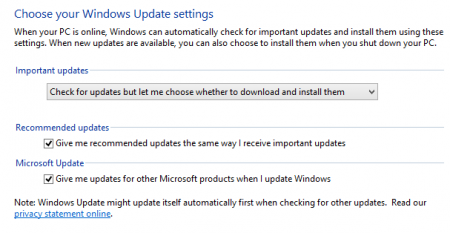
Microsoft is taking the idea of their operating system as a “service” seriously. This means that you, the user, don’t get to decide when your computer gets updates. Microsoft’s options in Windows 10 regarding updates are “schedule restart” and “automatically install” which doesn’t even seem different enough to me to warrant two separate options. Whereas in Windows 7 and Windows 8, the golden option has always been “Check for updates but let me choose whether to download and install them” Let me choose. I guess “letting me choose” just isn’t good enough for Microsoft anymore.
That’s certainly not the default option, of course. By default in every operating system going back to Windows XP, the last Microsoft OS to use a web browser to get updates instead of a standalone wuapp.exe program, automatically updating your OS was the default. But it was a simple matter to flip the switch to the “Let Me Choose” setting. That’s been removed in Windows 10.
Thankfully, all is not lost. The smart folks over at TenForums found the proper Local Policy setting that will allow Win10’s update setting to be “frozen” on a particular setting of your choosing. In this case, the option I selected was “Notify Me,” which greys out the Windows Update screen and doesn’t let me modify it to anything else, and puts a text in red above it “some settings are managed by your organization.” Sure, if by organization you mean Local Policy.
This is disconcerting. Microsoft is giving away licenses of Windows10 for free for the next year, to anyone running a legal copy of Win7 or Win8. They are doing their absolute best to lock down the operating system and turn it into something that they have more direct control over. The minute that they actually fully remove the ability for the user to control their update schedule, is the day I stop updating Windows.