
I surprised myself by keeping my Alienware 13 R3 for almost 10 years. Longer than I’ve ever had a laptop; I’ve owned four now, including that one and they’ve all been 3-5 years or so. I don’t count desktop computers in this; they’re essentially “ships of Theseus” and are comprised of parts purchased over many years; I’ve not “fully built” a desktop computer for myself since the original one I constructed in high school in 2000. Mainly, it was cool looking with RGB lighting and with a Nvidia 1060 GPU in it, and it was “good enough” at 1440p for basically all the games I wanted to play. I was happy to have it when we lived in Panama because of course, I didn’t bring a desktop with me, but I still wanted to game (the Wii U also came along for the ride but that’s essentially a Mario Kart Only console).
But it was showing its age. The little rubber feet were cracking off and leaving annoying bits everywhere I set it down. The fans were getting extremely loud, and in general it was just…slowing. In day to day use that it is; browsers mostly. For playing the same games as I was playing in 2017, it was as fine as usual, if I wanted to play those games – as if I have time to play games in general anymore, with a rambunctious toddler in the house!
I have had Frame.work on my mind for a long time now. Their goals as a company align pretty closely with mine. I love their repairability aspect. But… they didn’t have an OLED touch screen option. The Alienware kind of spoiled me with that sort of thing. I don’t use the touch aspect too much; it was one of those things that would be instinctive though; when I wanted to touch the screen, it would do what I’d expect. It’s weird for me to use laptops that don’t have a touchscreen now. But the OLED blacks and colors – mostly the jet-black blacks that only pixels that are 100% turned off can give you – that I couldn’t give up. Framework wasn’t making a screen I wanted, so I kept waiting (I wouldn’t have had the Alienware for 9 years if there had been an OLED Framework).
Randomly on Youtube I heard about ASUS’s Zenbook Duo series. It’s not a new thing – the model line has been around for at least one earlier iteration – but this new one looked particularly snazzy. Two screens, on one laptop? A removable Bluetooth keyboard covering the lower one? An intriguing, weird idea. Ever since being an adult in the tech world, I’ve loved having multiple screens for working; as many as four for my main workstation. So having two, built in, in a sleek tiny little package was appealing.
On a side note, ASUS also came out with the Zenbook Duo’s big, $4500-5500 sibling, the Zephyrus Duo, which is the same sort of idea of two screens, one laptop, but in a “gameified” sort of setup, like Alienware – 16 inch screens, Nvidia 5070 for $4500 or 5090 for $5500. But yeah – I don’t see myself moving to Panama and needing an actual “gaming laptop” again. The Zenbook Duo’s top-line option is $2600 and that has Intel’s new GPU range in it, the Arc. That should hold me for whatever light gaming I might want to do on it.
(Christine and I just passed on buying a house for a half a million dollars; after we hemmed, hawwed, and debated whether we wanted to deal with the hassle of moving to another cohousing community, the choice was taken out of our hands because someone else bought it first (it wasn’t a rapid mover; we wanted to see if the seller would come down in price at all). We both engaged in some retail therapy; she bought a new phone and laptop and clearly, I was about to as well.
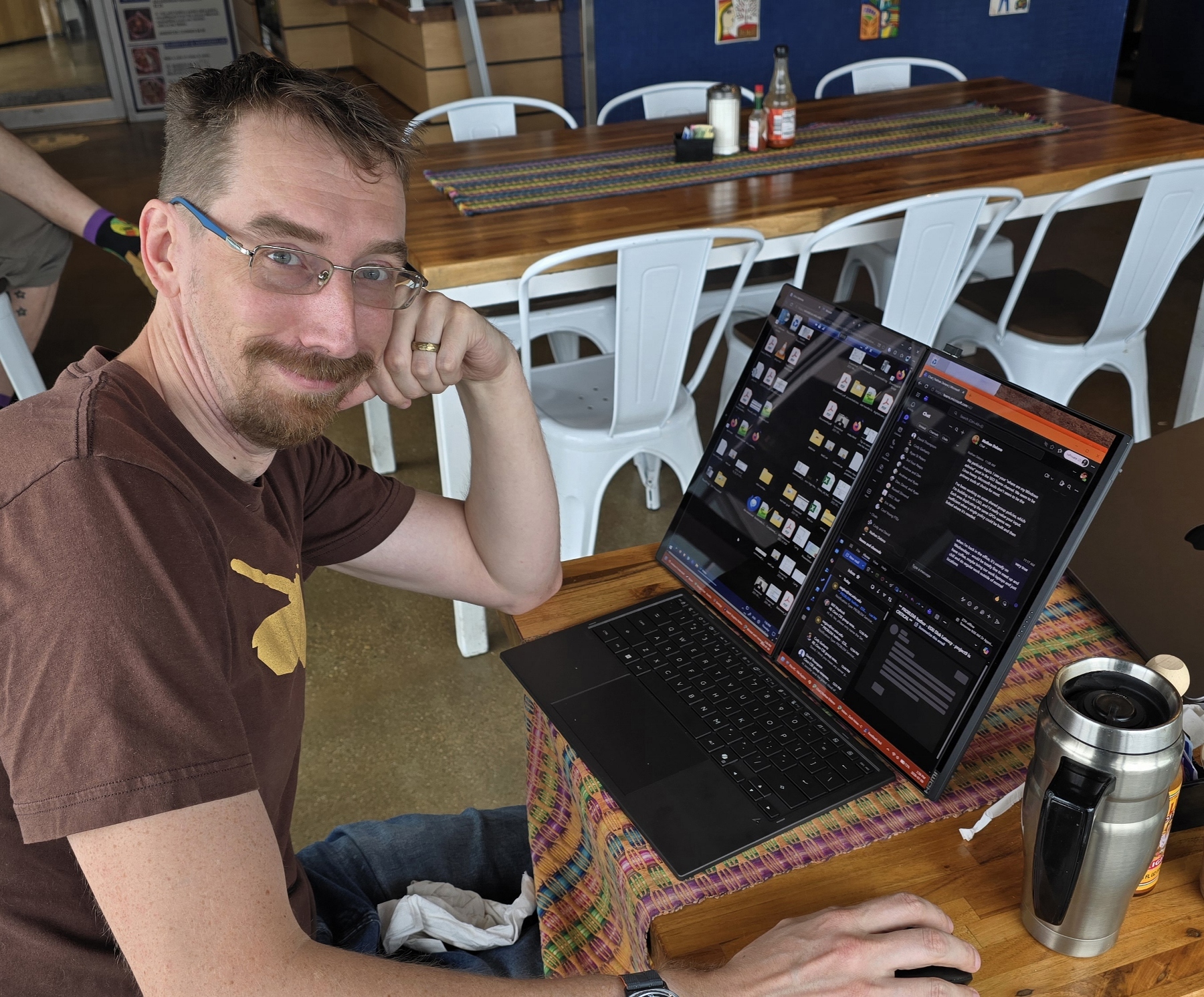
I’ve had it over a month now and generally, I’m a fan. It’s almost double the speed of my huge, heavy Alienware, first of all. I benchmarked it with 3DMark’s suite of tests, here are some screenshot results.
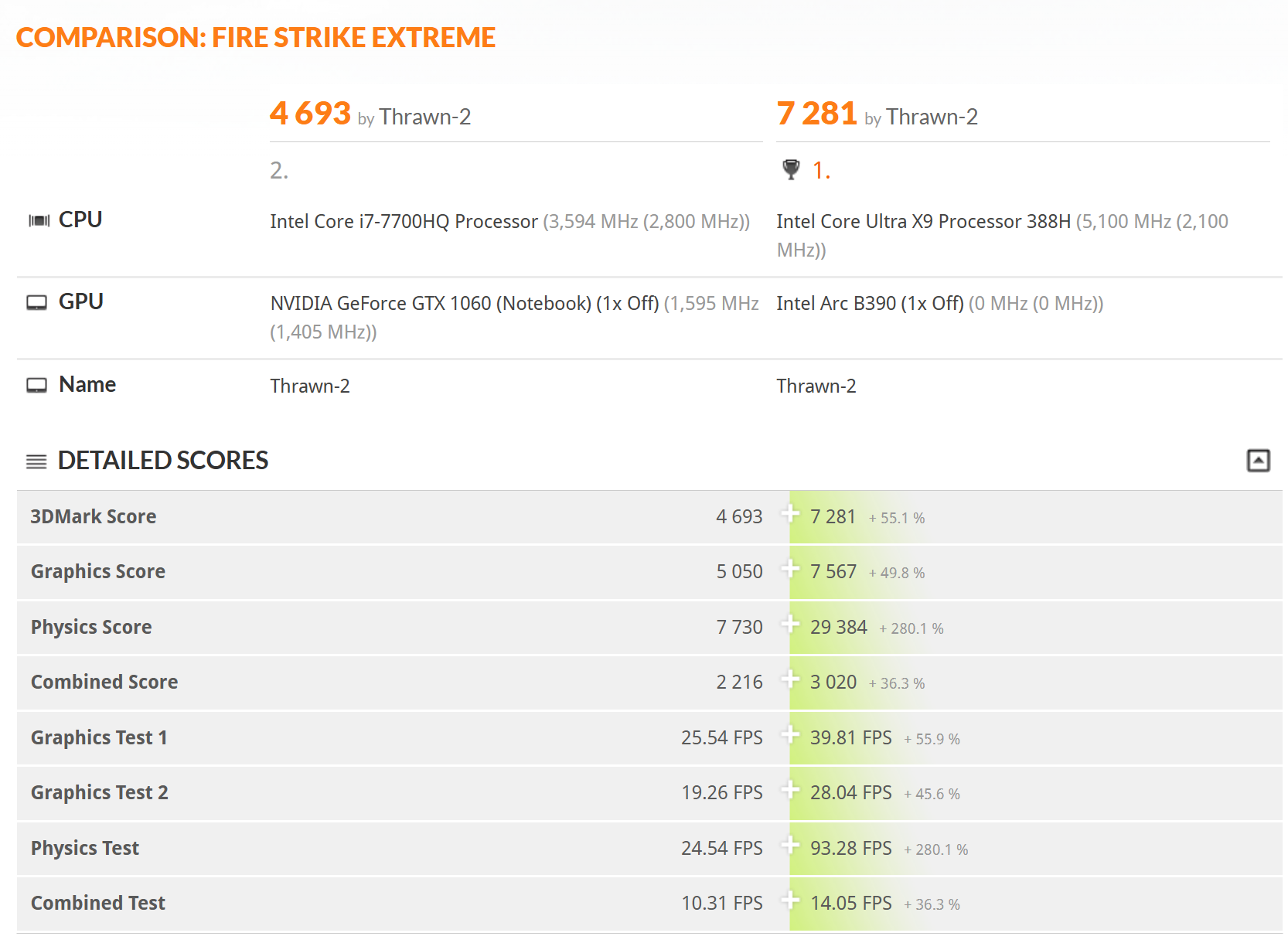
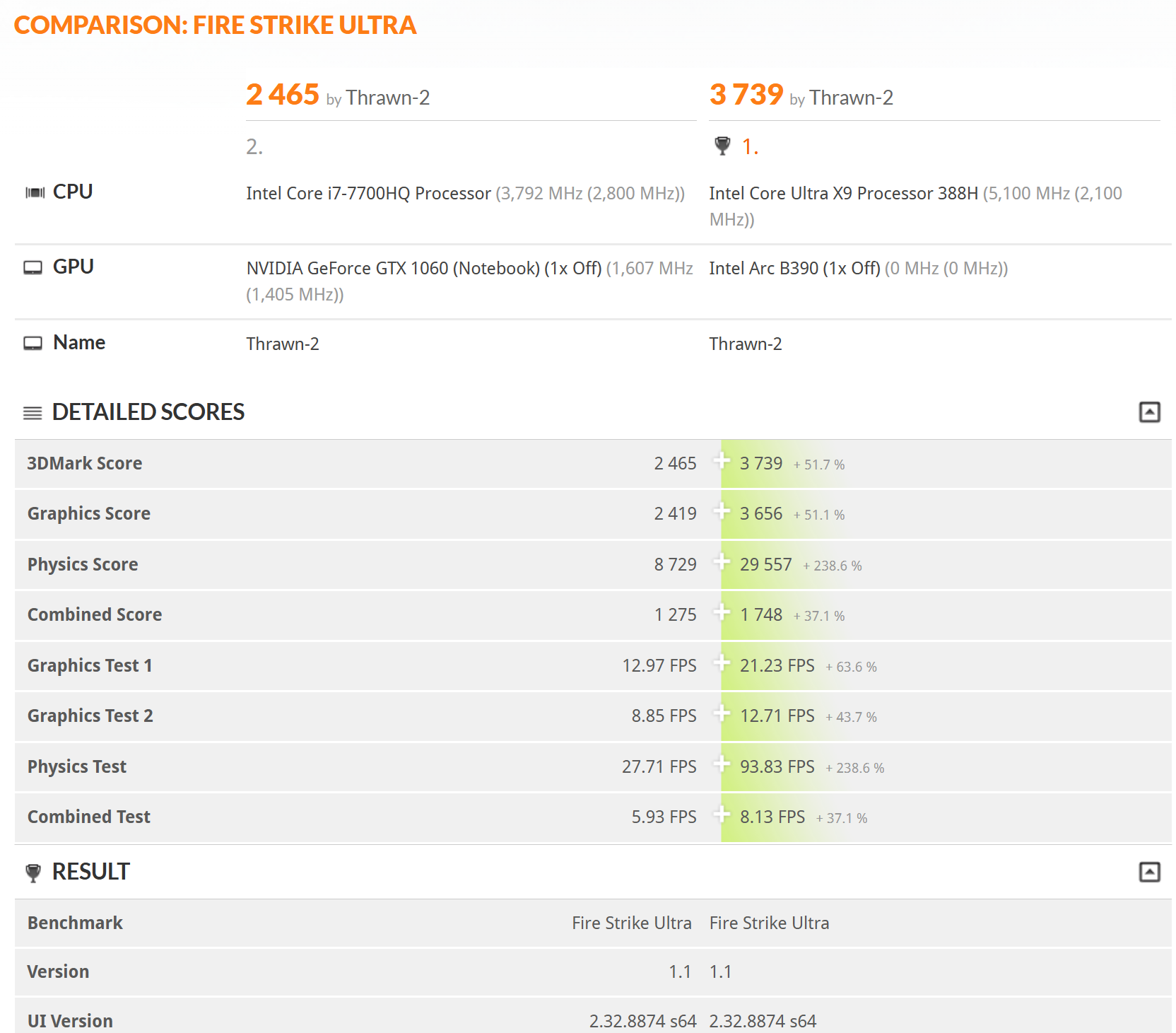
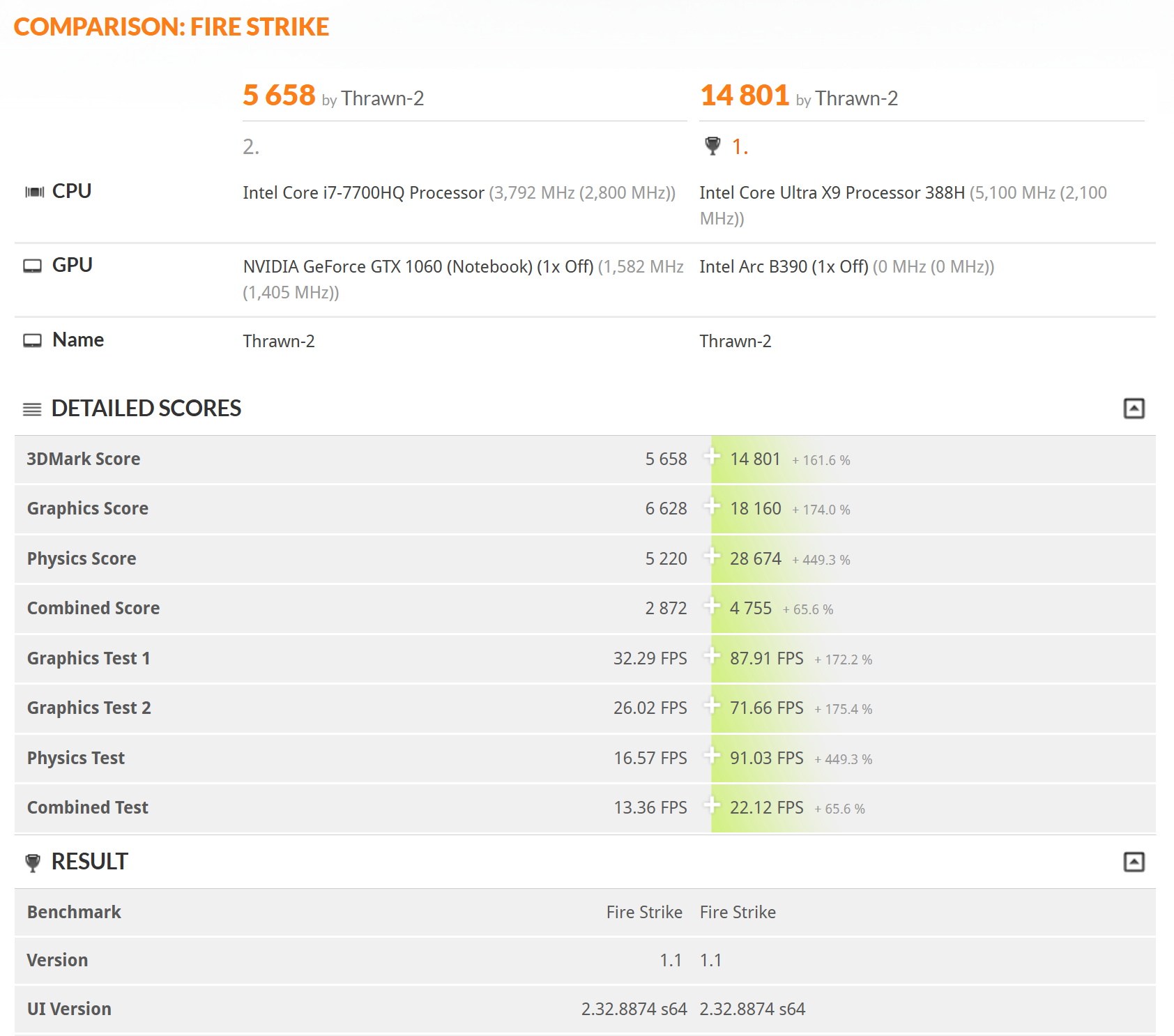
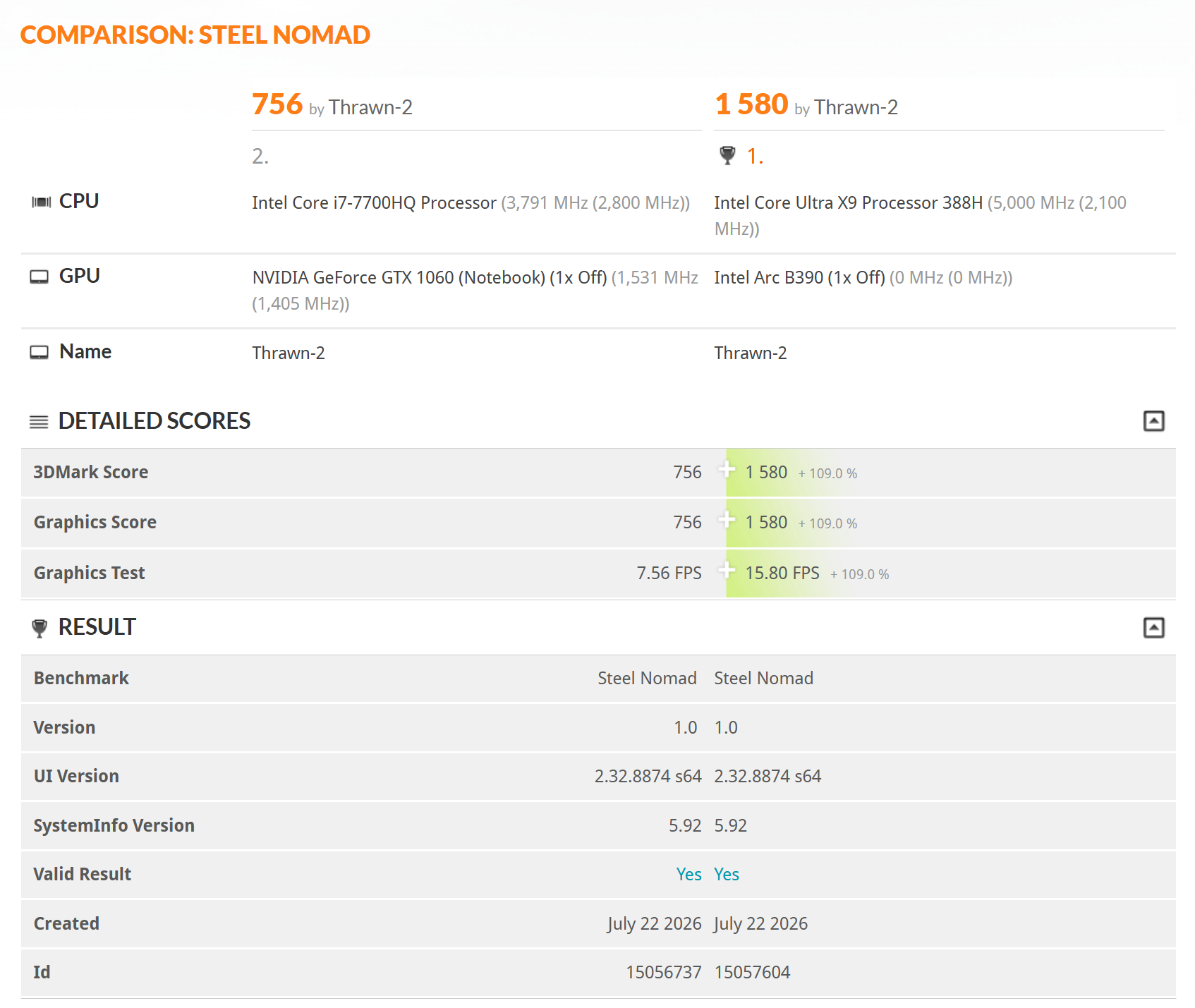
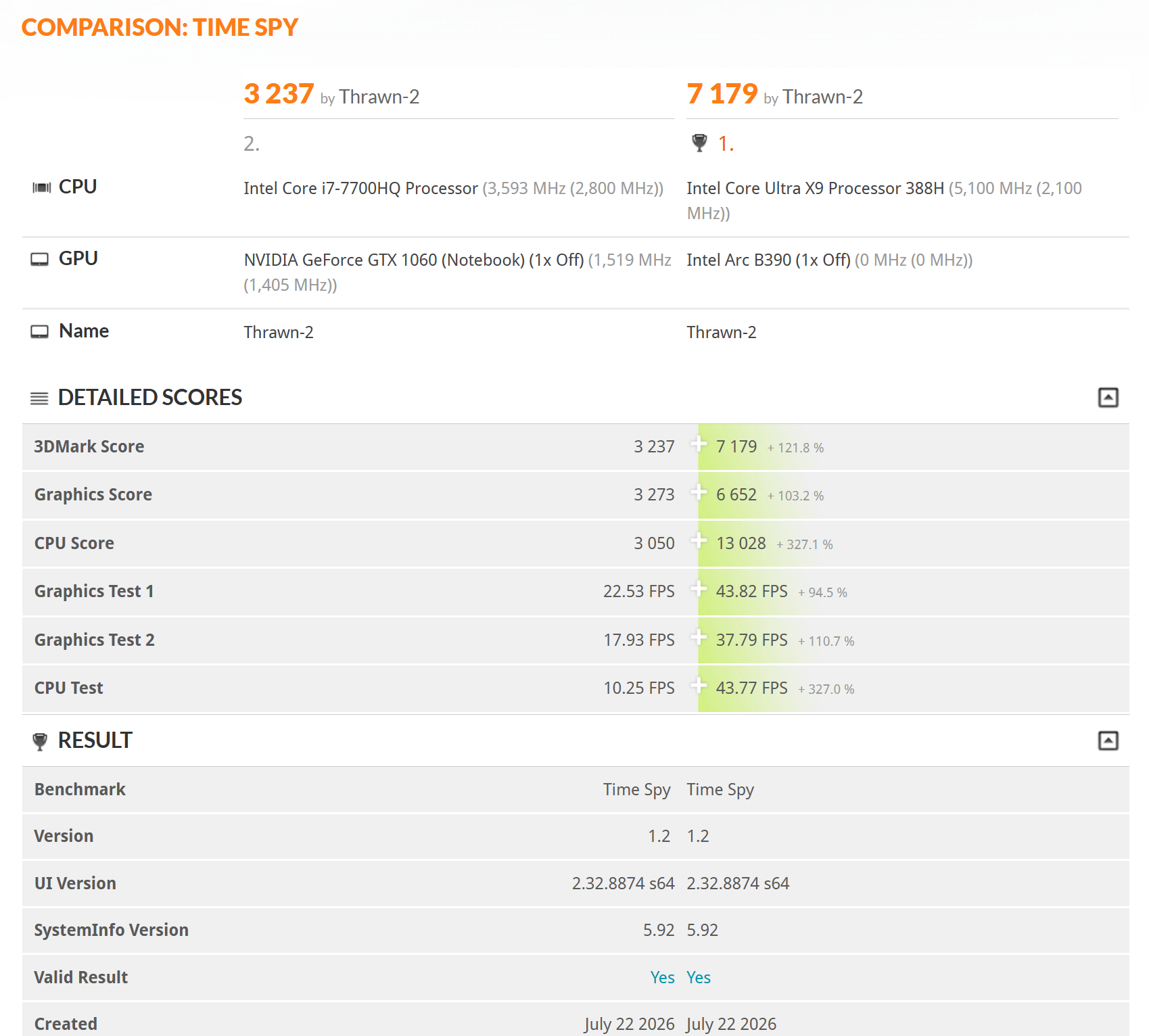
Props to ASUS for still giving us upgradable SSD slots (although not RAM, sadly – this is my first laptop with the annoying soldered-on RAM). The Alienware, bless it, had two SSD slots on it; but this lightweight beauty only has one. It came with a 1TB SSD in it, which I probably could have kept for a year or so. But… chip prices aren’t likely to go down anytime soon. In general, they’re still just trending up with maybe the end in sight (assuming no bursting of the “AI” bubble) if new fabrication plants open up in a couple of years. I don’t think 1TB could hold me for that long. So after querying said LLMs (large language models, what everyone should call “AI” because “AI” isn’t actual “intelligence” it’s just very, very good search engines that have ingested huge amounts of datasets and models) about SSD replacements – and I’m glad I did because the LLM warned me about double-sided vs single-sided SSD cards, the former of which would not have fit into this laptop. It also warned me about wattage and heat output too; I’m not used to such thin computers after all but the LLM knew everything about the Zenbook Duo 2026 that the internet did, so it was quick on the draw. So in the end, the choice was easy – a Lexar NM790 was 4TB, single-sided, with a 4 watt power draw, same as the Kioxia that the machine came with. Ugh, $500 for something that was $250 or less two years ago… but again, better than $600 next year.
CrystalDisk Benchmark of the two drives. Kioxia original on the left, Lexar on the right.
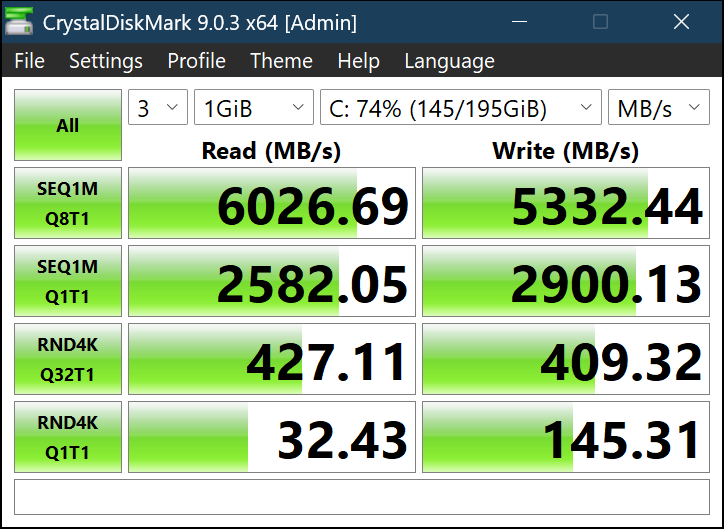
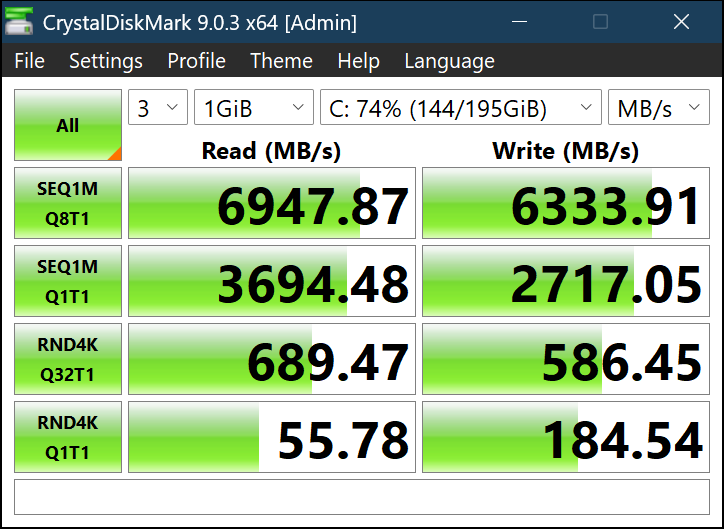
There are just a couple aspects about it that are annoying. The Windows Hello IR camera has too short of a timeout compared with the Alienware, so if it doesn’t detect your face clearly and properly in under 5 seconds, it just gives up and tells me to do a PIN instead. The Alienware would try valiantly for 7-10 seconds and almost during that time, would work.
When the Bluetooth keyboard is removed, it’s difficult, but not impossible, to type and trackpad in your laptop. It’s about half a centimeter thick and if it’s not a solid table, the action of typing or clicking or having the front corners on your legs, can cause the trackpad click button to be actuated and register a click where there shouldn’t be on. Having a thicker (yes, even though that would mean more weight) metal frame to the keyboard might have prevented that.
ASUS custom software wise, it’s pretty good and not too obtrusive. I removed everything except for their “Screen Xpert” tool which adds some extra options when you click and drag a window’s toolbar; it adds a big obvious “1” and “2” and a spread “x” like icon with arrows at the end. Dragging the mouse and dropping on 1, 2, or the X respectively will jump the window to be full screen on screen 1, screen 2, or my favorite, across both windows at once.
I do wish it had an RGB keyboard like the Alienware but Zach, give them credit, it’s not a “gaming laptop” at all; they want you to buy the Zephyrus for that. Basic white LED with 3 brightness levels is fine.
The screens are indeed gorgeous, just as I had hoped. I was impressed they fit 4 speakers into it; two are hidden in the hinge so that when the system is propped up in landscape mode on an average-height table or desk, they’re right at your ear level. There’s another two on the forward part of the laptop (on the level of where the touchpad is when it’s attached). I didn’t delete/alter the original audio software (Cirrus something or another) so maybe it’s the speakers, or maybe it’s the software (look I’m not that much of a tech purist; if software tweaks can make laptop-sized speakers sound punchy, loud-enough, and not flat, I’m not complaining). Webcam is – fine; not amazing.
No onboard ethernet either, unfortunately. My first personally-purchased laptop without a direct wired internet connection (my work laptop I got this past January also is sans-ethernet). So at the mercy of wifi, I’m watching the network speeds closely. On my home 802.11ac network (whatever that is in modern/layman terms, Wifi 6? 5? something like that. Wifi versions always go by IEEE version numbers in this household).
I’m not a fan of the fact that ASUS sticks such random ASUS-specific crap onto the Function keys of the keyboard. F9 and F12, besides being their actual Function key functions, are ASUS’s Screen Xpert and the MyASUS utility respectively. Come on. Do you really need to have hardware-level wrapping into these manufacturer executables? Same with swiping down-left from the upper right corner of the touchpad; that opens Screen Xpert too (and you can’t turn it off). You can turn off all the touchpad shortcuts, but I like the ones for swiping up/down on the left side to adjust volume, and right side to adjust brightness. Why not let me turn off specific shortcuts?
Speaking of fans, it’s incredibly silent, even when playing High on Life, a Rick and Morty animation style game at 60-70 fps. That’s certainly when it got the hottest; I was running a Youtube video on one screen below while playing the game on the screen above. I could hear the slight hum of the fan then, and the lower screen with all the electronics (except 1/2 the battery is in the above section I’ve heard; the system is two 49 watt-hour batteries, one in each half) was getting QUITE warm. It does make me wonder how the lower OLED will hold up.
I bought the 3 year warranty, with the accidental damage protection. With a toddler, and with double the screens of a typical laptop to break, it just seemed…safer.
All and all, besides a few annoyances it seems like a beautiful, capable system. I’ve never had something so thin and light before. Time will tell how long it lasts. I’m dreading the inevitable “how to replace the internal battery, it’s super hard because you can’t take the upper screen apart because there are no screws on that part of the system unlike the lower part” conversation I’ll be having with myself in 2-3 years time. That’s when I’m going to really regret not getting a Framework laptop, probably!



No one has commented on this post - please leave me one, I love getting feedback!
Follow this post's comments, or leave a Trackback from your site